
URL Slug: /roku-settings-off
Description: Stop Roku from spying on you and making your device slow! We break down the 5 critical settings to disable now for better privacy, faster performance, and a lag-free stream.
This post contains affiliate links. If you purchase a product through one of our links, we may receive a commission at no extra cost to you.
Introduction: Your Roku is Spying On You (And It’s Slowing You Down)
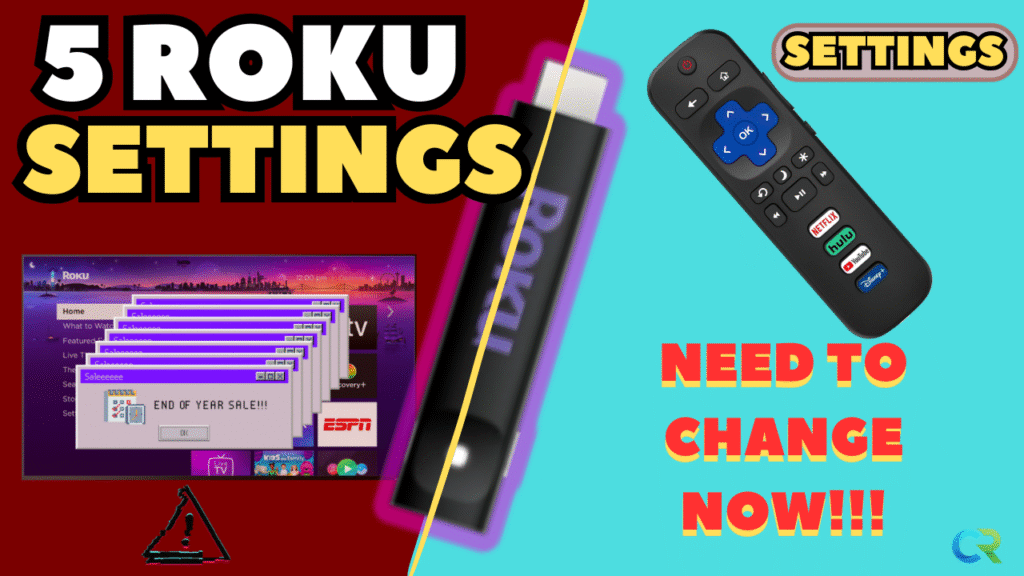
Hey everyone! If you’re concerned about your digital privacy and want your Roku to run faster, you’ve come to the right place. Whether you just unboxed a new Roku TV or you’ve had a streaming stick for years, some critical privacy settings are hidden deep in the menus and are tracking way more than you think. In this 2025 update, we’ll show you five settings to change now to lock down your privacy, clean up your home screen, and stop unnecessary data sharing. Stick around until the end for a bonus tip to save power!
You don’t need to buy a new device. You need to make five simple changes. This guide breaks down the five critical settings you must turn off immediately to regain your privacy and make your Roku run like new in 2025.
The Fix is easy. Let’s start with the biggest privacy problem. 👇🏻
🔐 The Ultimate Privacy Fix: The only way to truly stop your viewing habits from being tracked is by using a Virtual Private Network (VPN). We highly recommend NordVPN. Its simple app allows you to encrypt all traffic coming off your Roku, ensuring your data remains private.
Click here to get the exclusive CReviewsTech discount on NordVPN.
Setting #1: Privacy Choices
How to Stop Roku from Selling Your Viewing Data
Why: Roku collects usage and device info to personalize ads and share with partners. Opting out reduces data Roku can sell/share and limits profiling.
Benefit: Fewer targeted ads, less data floating around, better baseline privacy.
- From the Roku Home Screen, go to Settings.
- Scroll down and select Privacy.
- Select Privacy Choices.
What to toggle
- Limit use of sensitive info → Enable / Check.
- Do not share/sell my info → Enable / Check (or select the option that stops sharing/selling).
🚀 Permanent Performance Upgrade: The Roku Ultra is our top recommendation for a lag-free experience. Its faster processor, Ethernet port, and extended range make it the permanent solution to all your performance issues.
Click here to check the best price for the Roku Ultra on Amazon.
SETTING 2 – Advertising
limit tracking & reset the identifier
Why: Roku (like phones and other smart devices) uses an advertising identifier to track viewing across apps and serve targeted ads. Limiting tracking reduces cross-app ad profiling. Resetting the ID clears the old trace so advertisers can’t link past activity to the new state as easily.
Benefit: Reduced personalized ads and less cross-app profiling; small step toward cleaner ad targeting.
- Where:
Settings → Privacy → Advertising - Turn Limit Ad Tracking ON (if your device shows a checkbox, make sure it is checked; some systems show the opposite language — turn the limit ON).
- Then choose Reset advertising identifier (or Reset advertising ID) to clear the old ID.
Setting 3 – Smart TV Experience
stop scanning HDMI/antenna viewing
Why: Smart TV Experience can analyze content coming into your TV through HDMI or antenna and report viewing signals for recommendations/advertisers. That means Roku can “see” what you watch even when it’s not from a Roku app.
Benefit: Prevents Roku from analyzing non-Roku inputs, reduces data collection, fewer unwanted recommendations and popups.
- Where:
Settings → Privacy → Smart TV Experience - Use information for TV inputs → Turn OFF.
- Optionally Disable “Enable auto notifications” (turn OFF) to stop Roku pop-ups about suggested shows.
Setting 4 – Voice / Microphone features
Restrict or remove mic access
Why: Voice features can record snippets that are sent to Roku’s servers for processing. Minimizing mic access reduces the chance of unintended audio capture.
Benefit: Better privacy for conversations and background audio; less data sent off your device.
- Where:
Settings → Privacy → Voice(orSettings → Privacy → Voice-App Microphone Accessdepending on your Roku) - If you never use voice search / voice control: Deny / Never allow microphone access.
- If you use voice occasionally: leave the global permission off and allow microphone access only when an app prompts, or remove mic access from individual apps in the app permission list.
- Check
Voice app microphone accessand make sure apps you don’t trust show No access.
Setting 5 – Home Screen Cleanup
Hide promoted content and speed navigation
Why: Roku’s home screen pushes sponsored content, live/sports tiles, and featured free apps. Disabling these reduces clutter and the device’s background resources spent updating those rows.
Benefit: Cleaner home screen, faster navigation, fewer sponsored/promoted tiles.
- Where:
Settings → Home Screen(orHome→Settingsdepending on model) - Recommendations row → Turn OFF / Hide.
- What to Watch → Hide (or turn OFF).
- Optional: turn OFF Live TV, Sports, Featured Free rows if you don’t use them.
🛒 The Last Step to a Lag-Free Life: The Roku Ultra is the one device that won’t fail you. Buy on AMAZON: ROKU ULTRA
WATCH ON YOUTUBE👇🏻
BONUS TIP
stop Fast TV Start (save power & resources)
Why: Fast TV Start keeps parts of the Roku running in the background for quicker wake times, but it uses more power and system resources and can keep background processes active.
Benefit: Slightly slower boot/wake time but less background activity, lower power draw, and potentially more privacy (fewer always-on services).
Get the best reviews and comparisons delivered to you — subscribe now!⬇️
👉 Check out my top streaming device picks on Amazon below!
➡️Fire TV Stick HD (#1 Streaming Devices on Amazon)
➡️Fire TV Stick 4K MAX (Best Stick Overall)
➡️Roku Stick 4K (Simple and Affordable)
➡️Roku Ultra (Top Roku Ethernet Connection)
Quick notes & device differences
- Menu labels can vary slightly between Roku OS versions and manufacturers (TCL Roku TV, Hisense Roku TV, Roku stick/streaming player). If a label doesn’t match exactly, look for the same keywords: Privacy, Advertising, Smart TV Experience, Voice, Home Screen, System → Power.
- On Roku TVs (built-in Roku), the menus are essentially the same as Roku sticks; you’ll find the same paths in Settings.
Final thoughts — is this enough?
These steps remove a lot of passive data collection and reduce ad personalization on your Roku. They also declutter the UI and improve responsiveness. If you want to go even further:
- Consider using a private DNS or network-level ad blocker (like Pi-Hole) to block ad domains.
- Use a VPN on devices where appropriate to protect network traffic (note: some streaming services may react to VPNs).
- Regularly check permissions after major Roku OS updates — menu defaults can change.
I personally mention NordVPN in the video description because it’s an easy, well-known option for most people.