This post contains affiliate links. If you click these links and make a qualifying purchase, we may earn a commission at no extra cost to you. We only recommend products we use and believe will add significant value to our readers.
5 Hidden Firestick Features You Should Be Using in 2025
THE PROBLEM
Is your Firestick feeling sluggish, constantly buffering, or secretly holding back its full potential? You bought it for seamless streaming, but over time, it can feel slow, restrictive, and even expose you to privacy risks. The truth is, your Amazon Fire TV Stick can do so much more than just Netflix and YouTube – but most users never touch its most powerful, hidden features.
In this comprehensive guide for 2025, we’re going to unlock 5 secret Firestick features that Amazon rarely highlights. These aren’t just minor tweaks; they’re essential settings that will instantly boost your device’s speed, free up crucial storage, enhance your privacy, and give you control you didn’t know you had.
From activating the vital Developer Options for advanced app control, to a 5-second reboot Tip that instantly kills buffering, you’re about to transform your streaming experience.
Let’s dive in and make your Firestick faster, safer, and truly yours.
THE SOLUTIONS & THE VALUE
FEATURE #1: Unlock Hidden Developer Options (The Power User’s Gateway)
Problem: Your Firestick, by default, is locked down. This prevents you from installing apps outside the Amazon Appstore (known as sideloading) and accessing advanced system tweaks. Without this, your device’s true potential remains untapped.
The Tip: Amazon has hidden the Developer Options menu, but it’s still there and vital for power users.
- How to Enable:
- From the Firestick Home screen, navigate to Settings (the gear icon).
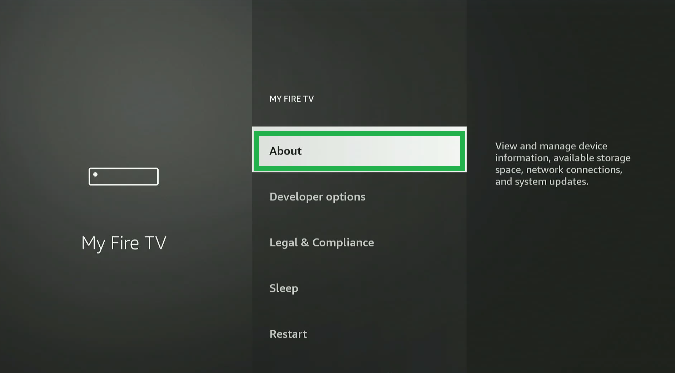
- Select My Fire TV.
- Select About.
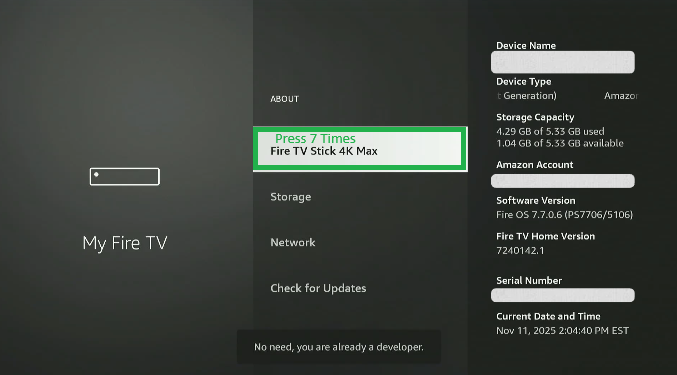
- Scroll down and rapidly click the center “Select” button on “Fire TV Stick 4K Max” (or whatever your specific model is named) seven times.
- You’ll see a small message pop up saying, “No need, you are already a developer.”
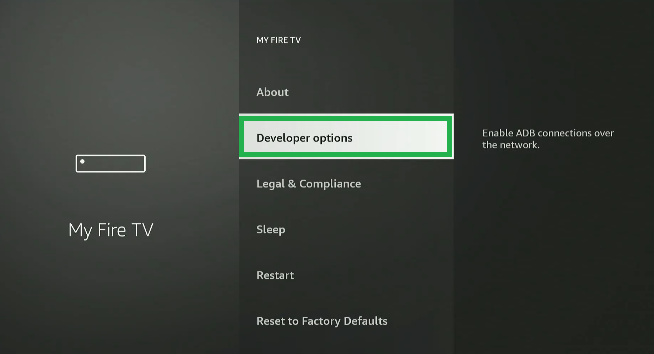
- Now, if you go back to the My Fire TV menu, you’ll see a new option: “Developer Options.”
Why You Should Use It: This menu is your gateway to ADB Debugging and Apps from Unknown Sources – absolutely essential for sideloading powerful third-party apps, advanced file managers, and truly customizing your Firestick beyond Amazon’s limitations. Don’t skip this if you want full control!
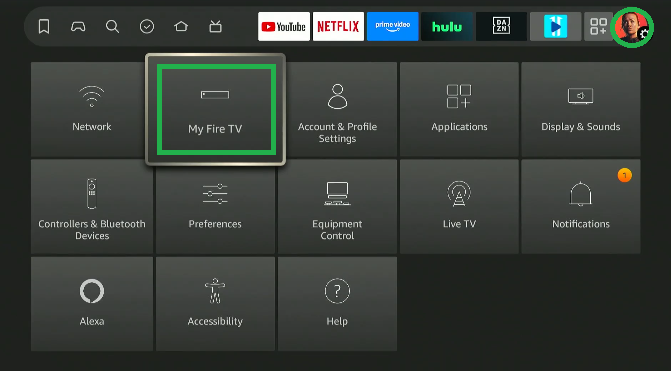
Now When You go Back You Should See “Developer Options”
FEATURE #2: The Screen Magnifier and Accessibility Hidden Remote Shortcuts
Problem: You’re looking for a quick way to adjust the screen or you accidentally hit a button combination and now your screen is zoomed in (a very common panic moment!).
The Tip: The Screen Magnifier, an accessibility feature, is also linked to several secret remote shortcuts that can be a fast way to fix display issues.
How to Find It (and turn it OFF if zoomed in!):
Go to Settings (the gear icon)
Select Accessibility.
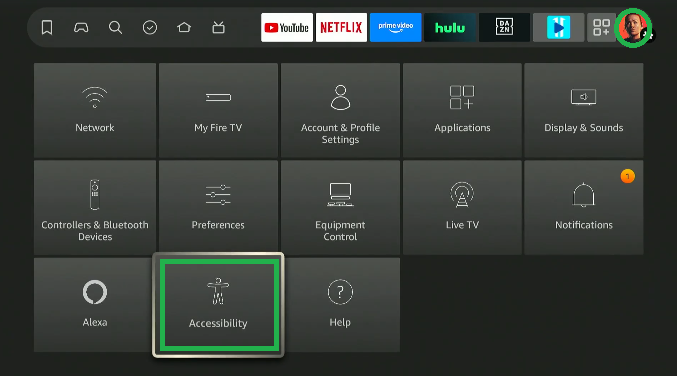
Select Screen Magnifier.
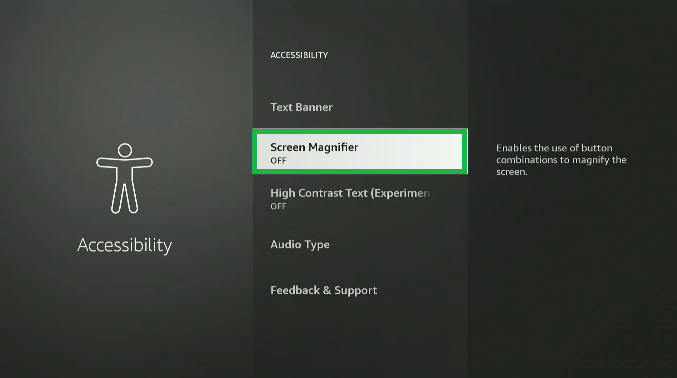
Ensure this is set to OFF or On Depending on your preference.
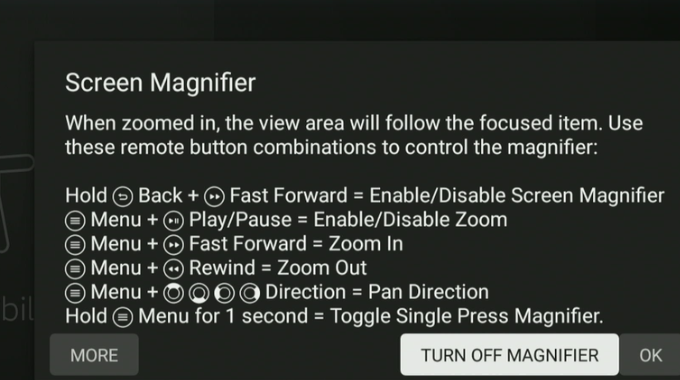
- The Control Shortcuts (The Fix for the Zoom!): The feature is activated by pressing two buttons simultaneously, but you need a separate combination to move the zoomed screen around:
- To TOGGLE ON/OFF: Press the Back button and the Fast Forward button at the same time.
- To PAN/MOVE the Screen: Press the Back button and the Directional Pad (Up, Down, Left, or Right) simultaneously.
Why You Should Use It: This is essential for fixing that common “suddenly zoomed in” panic. Once you know the Back + Fast Forward combination, you can easily turn the feature on for reading small subtitles or off to return to your normal view, all without navigating the menus.
FEATURE #3: Monitor and Limit Data Usage (Your ISP Throttling Shield)
Problem: If you have a monthly data cap with your Internet Service Provider (ISP), or if you find your Firestick starts buffering heavily during peak evening hours, you might be a victim of ISP throttling or excessive data usage.
The Tip: The Firestick has a built-in Data Monitoring tool that allows you to track usage and set quality limits, which can often prevent your ISP from targeting your
connection for slowdowns.
1. Go to Settings (the gear icon).
2. Select Preferences.
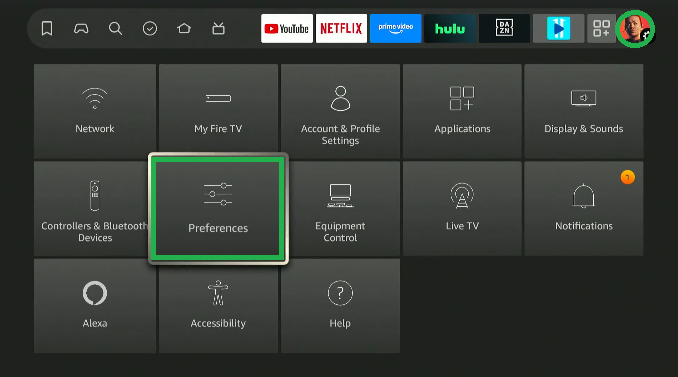
3. Select Data Usage Monitoring.
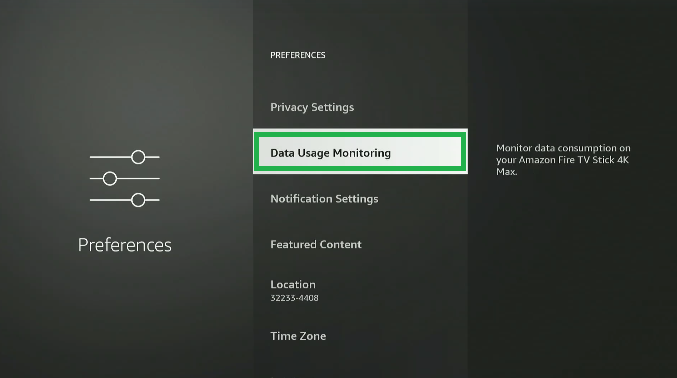
4. Toggle Data Monitoring to ON.
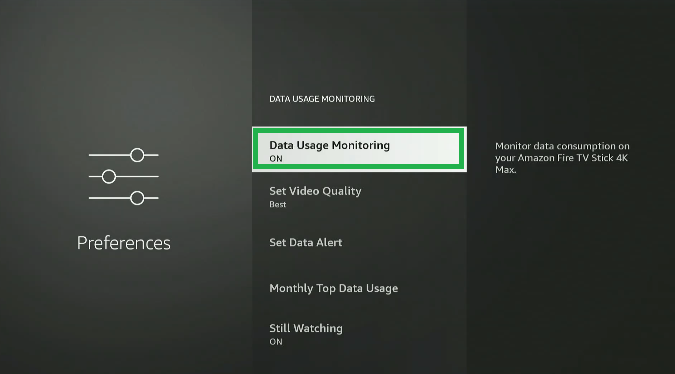
5. You can then view Monthly Top Data Usage to see which apps (like Netflix or Prime Video) are the biggest data hogs.
6. (Optional but Powerful): You can set a Data Alert or change the Set Video Quality to “Good” or “Better” during periods when you need to conserve bandwidth
Why You Should Use It: This setting provides crucial visibility. But more importantly, many power users find that actively monitoring data usage forces the Firestick to prioritize streaming over other background data tasks, often reducing unexpected buffering.
FEATURE #4: Stop Background Apps from Killing Your Speed (App AutoStart Control)
Problem: Just like your phone or computer, apps on your Firestick continue to run in the background, consuming RAM and CPU cycles. This leads to frustrating lag, slower navigation, and the dreaded buffering during your favorite shows.
The Hack: You can manually force-stop these rogue apps and clear their temporary cache files without uninstalling them.
1. Go to Settings (the gear icon).
2. Select Applications.
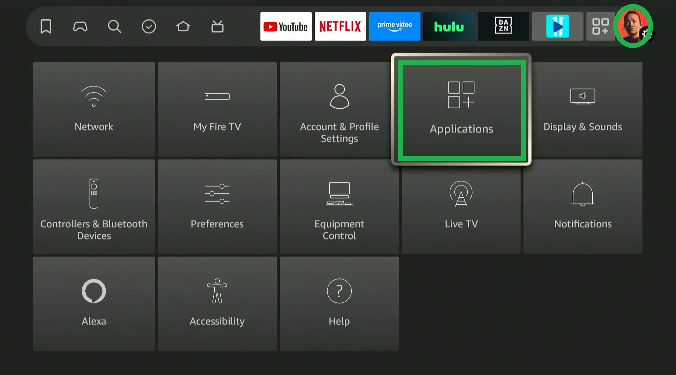
3. Select Manage Installed Applications.
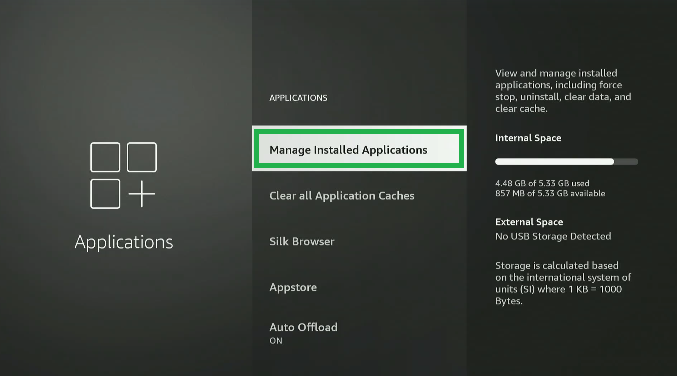
4. Scroll through the list and select apps you aren’t actively using.
5. For each app, choose “Force Stop” (this temporarily shuts it down) and “Clear Cache” (this clears temporary data without affecting your logins or settings).
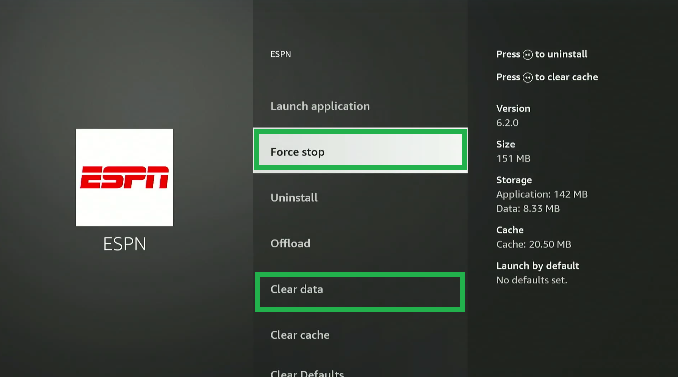
Why You Should Use It: Performing this regularly frees up memory, instantly boosts your Firestick’s speed, and significantly reduces buffering. It’s like giving your device a fresh breath of air without needing to restart it.
FEATURE #5: The 5-Second Remote Reboot Hack (The Ultimate Buffering Killer)
Problem: Your Firestick is never truly “off”; it only goes to sleep. Over days and weeks, memory issues, old cache, and app glitches build up, leading to inevitable lag and buffering. Navigating the menus to find the Settings $\rightarrow$ My Fire TV $\rightarrow$ Restart option takes too long.
The Tip: There is a secret, two-button remote shortcut that forces a hard, clean system reboot in seconds.
- How to Do It:
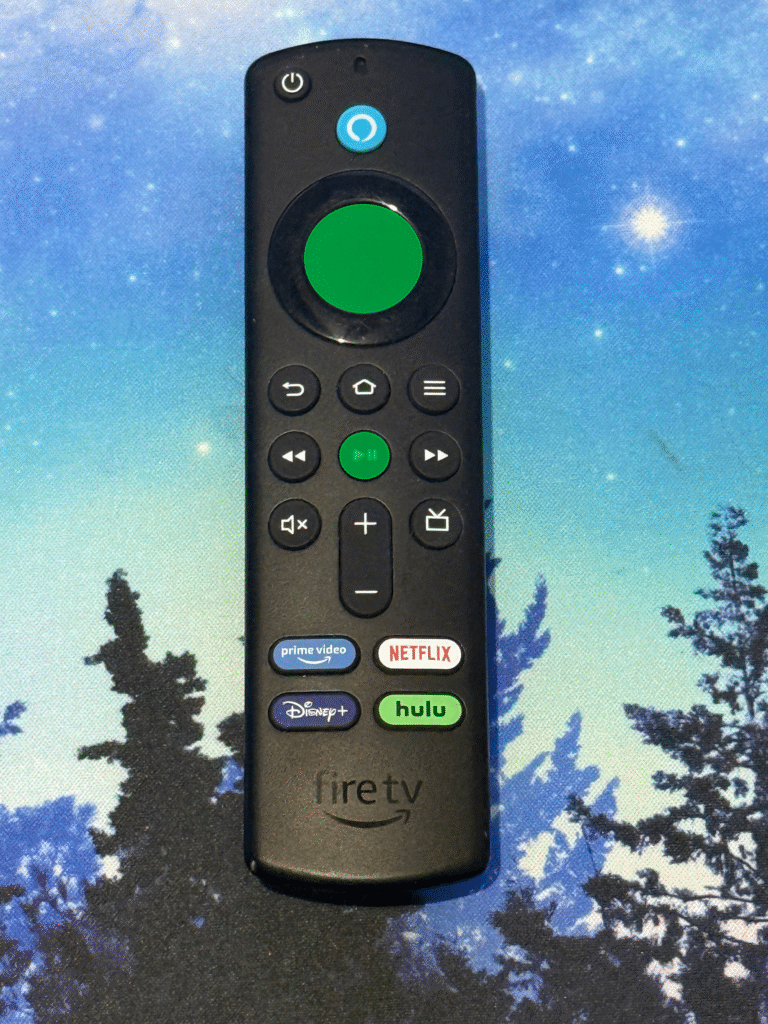
- Press and hold the Select Button (the center ring button) and the Play/Pause Button on your remote at the same time.
- Hold them for about 5 to 10 seconds.
- The screen will instantly go black, and you will see the “Fire TV Stick is powering off…” message.
Why You Should Use It: This forces a clean system restart, clearing out all lingering memory issues without the risk of unplugging the power cord. If your Firestick is lagging, use this before trying anything else—it fixes 99% of common issues.
📺 Want to see this in action? Watch the video tutorial and follow along! YouTube Video: 5 Hidden Firestick Features You Should Be Using in 2025
You have now transformed your Firestick. You’ve unlocked its highest potential with Developer Options, controlled resource hogs with App Control, optimized data usage, and mastered the instant reboot hack.
However, there is one final, non-negotiable step to ensuring a fast, private, and secure streaming experience, especially now that you can sideload apps (Feature #1).
The Essential Security Shield: Why You Need a VPN
When you use the Developer Options to sideload third-party apps, you introduce potential security and privacy risks. Furthermore, if you’re streaming high-quality content, your ISP is watching and may be secretly slowing down your connection (throttling), causing the buffering you just tried to fix.
This is why we highly recommend using a premium VPN like NordVPN.
- 🛡️ Blocks Malware: NordVPN’s Threat Protection feature blocks malware and trackers that can often be hidden in third-party apps.
- 💨 Kills Buffering: By encrypting your traffic, NordVPN prevents your ISP from seeing what you are streaming, stopping them from slowing your speeds down.
You have the power to fix your Firestick—now give it the ultimate protection.
🔥 Get The Best Deal:
We’ve secured an exclusive deal for our readers. Click the link below right now to get up to 77% OFF their best plan, PLUS you get three extra months completely free!
Remember, you have nothing to lose: every plan comes with a 30-day money-back guarantee. Grab the deal and enjoy truly secure, buffer-free streaming today.
NORDVPN EXCLUSIVE DEAL
You Ready The Blog Now Watch the YOUTUBE Video!!!