
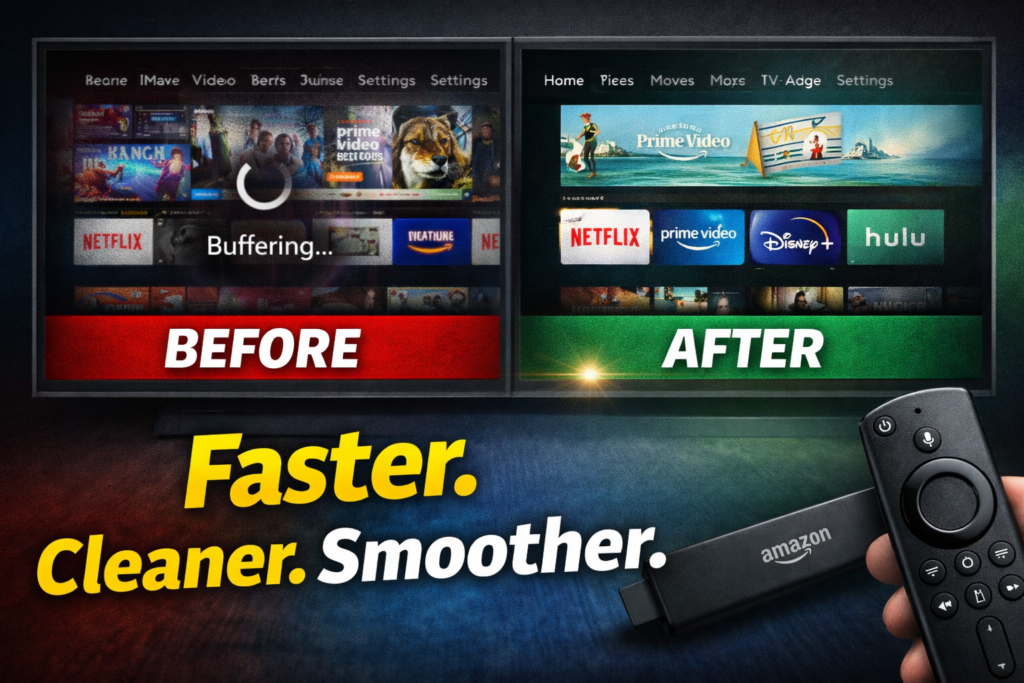
Firestick Settings You MUST Change in 2026 (Boost Speed, Privacy & Performance)
If your Firestick feels slow, buffers too often, or shows ads everywhere, the problem usually isn’t your internet — it’s your settings.
Amazon enables several features by default that hurt performance, invade privacy, and clutter your screen.
The good news? You can fix most of it in 10 minutes.
Below are the Firestick settings you MUST change in 2026 to get a faster, cleaner, and more private streaming experience.
Check the Post 👉 best-vpn-for-streaming-2026-speed-reliability-tested

🔥 Why These Firestick Settings Matter in 2026
New Firestick updates focus heavily on:
- Ads and recommendations
- Background services
- Data collection
If you don’t adjust these settings:
- Your device gets slower over time
- Apps run in the background
- You see more ads
- Your data is constantly tracked
Let’s fix that.
Check the YouTube Video – https://youtu.be/YLkVFCHh34U
1. Turn Off App Notifications (Huge Speed Win)
Firestick apps send background notifications that:
- Slow down the system
- Use memory
- Interrupt streaming
What to do:
Settings → Preferences → Notification Settings
- Turn OFF: Do Not Interrupt
- Turn OFF all app notifications
This alone noticeably improves responsiveness.
2. Disable Autoplay (Ads + Performance Killer)
Autoplay previews use:
- Bandwidth
- CPU
- RAM
And they constantly push ads.
What to do:
Settings → Preferences → Featured Content
- Turn OFF: Allow Video Autoplay
- Turn OFF: Allow Audio Autoplay
Your home screen becomes quieter, cleaner, and faster.
Check out the onn post: 5-essential-tricks-to-supercharge-your-onn-4k-plus-november-2025
3. Limit Data Tracking & Privacy Settings (Must Do)
Amazon tracks:
- App usage
- Search behavior
- Viewing habits
This impacts performance and privacy.
What to do:
Settings → Preferences → Privacy Settings
- Turn OFF: Device Usage Data
- Turn OFF: Collect App Usage Data
- Turn OFF: Interest-Based Ads
This reduces background activity and ad targeting.
4. Stop Apps Running in the Background
Apps you’re not using can still:
- Consume RAM
- Slow navigation
- Cause buffering
What to do:
Settings → Applications → Manage Installed Applications
- Force stop apps you don’t use daily
- Clear cache (NOT data) on heavy apps
Do this weekly for best performance.
5. Disable Unused Amazon Features
Firestick enables features many people never use.
Turn off if unused:
- Alexa hands-free (on supported models)
- Amazon Photos sync
- Screensaver promotions
Path:
Settings → Preferences → Alexa / Amazon Content
Less background activity = smoother streaming.
6. Update Your Firestick (Don’t Skip This)
Updates include:
- Performance fixes
- Security patches
- App compatibility improvements
What to do:
Settings → My Fire TV → About → Check for Updates
If your Firestick hasn’t updated in months, performance WILL suffer.
7. When Settings Aren’t Enough (Upgrade Time)
If you’ve done all the above and still experience:
- Lag
- Freezing
- App crashes
Your Firestick may be underpowered for 2026 apps.
Best upgrade options:
👉 Amazon Fire TV Stick 4K Max – Best Firestick for Speed & Performance (2026)
👉 Amazon Fire TV Cube, with AI-powered – Best if You Can Pay a Little More
Bonus Tip: Restart Your Firestick Weekly
A simple restart clears:
- Temporary files
- Memory leaks
- App hangups
How:
Settings → My Fire TV → Restart
Frequently Asked Questions
Does changing these settings really help?
Yes. These changes reduce background processes and free system resources immediately.
Will this remove ads completely?
No — but it dramatically reduces how often and aggressively they appear.
Is this safe?
100%. These are built-in settings provided by Amazon.
Final Thoughts
Your Firestick doesn’t need replacing every year — it just needs the right configuration.
If you change nothing else, make sure you:
- Turn off autoplay
- Disable tracking
- Stop background apps
Your streaming experience in 2026 will be faster, cleaner, and less frustrating.
🔗 Recommended Tools & Upgrades
- 👉 Amazon Fire TV Stick 4K Max – Best Firestick for Speed & Performance (2026)
- 👉 Ethernet Adapter for Amazon Fire TV Devices – Makes Your Stream Stable
- 👉 OTG Cable Adapter for fire Stick 4K Max – So You Can Add a Flash Drive
- 👉 64GB 2 Pack USB Flash Drive – So You Can Have More Storage Space
(These solve buffering issues settings alone can’t fix.)
Some links and banners in this post are affiliate links. I may earn a commission at no extra cost to you.
Pingback: 5 Essential Tricks to Supercharge ONN 4K Plus (2025) -
Pingback: Best VPN for Streaming 2026 (Speed & Reliability Tested)
Pingback: Beats Studio Pro Headphones – 51% Off
Pingback: HP Business Laptop 1TB 128GB SSD 8GB RAM – 40% off
Pingback: Amazon Echo Show 21 (newest model)
Pingback: Best Streaming Device for IPTV in 2026 (No Buffering, Fast)
Pingback: Best Firestick Alternatives in 2026